

Overview
The Microsoft 365 Mail server enables AI assistants to interact with Microsoft Outlook and Exchange Online, providing comprehensive email management, attachment handling, and shared mailbox capabilities through Microsoft Graph API.How to Add Microsoft 365 Mail
The setup process varies depending on your Microsoft account type:Personal Outlook Users
If you have a free outlook.com email address:Add Server
Add the Microsoft 365 Mail server to your Civic environment through the server directory.
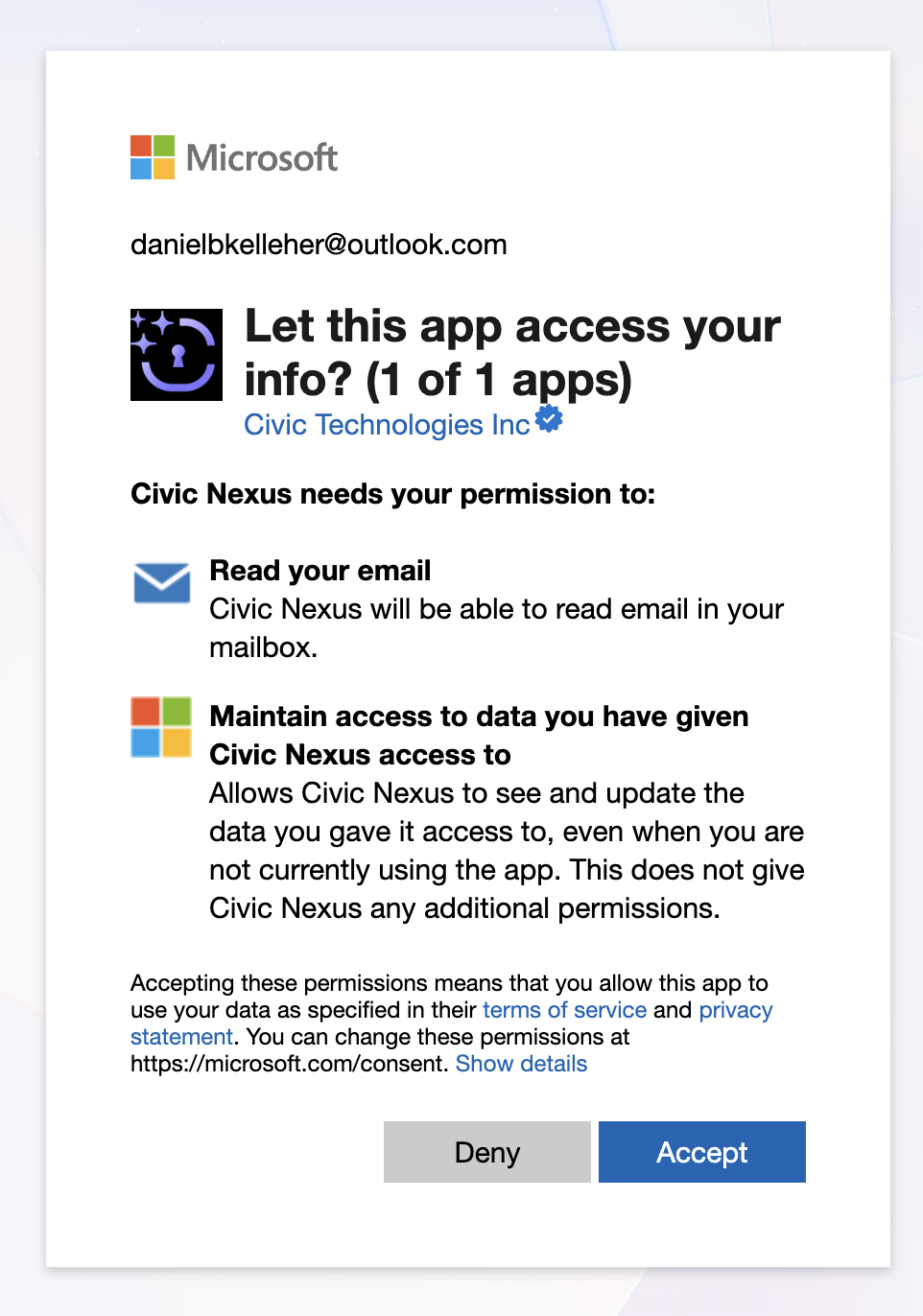
Microsoft 365 Business Users
For Microsoft 365 Business or Office 365 license holders, setup is straightforward:Add Server
Add the Microsoft 365 Mail server to your Civic environment through the server directory.
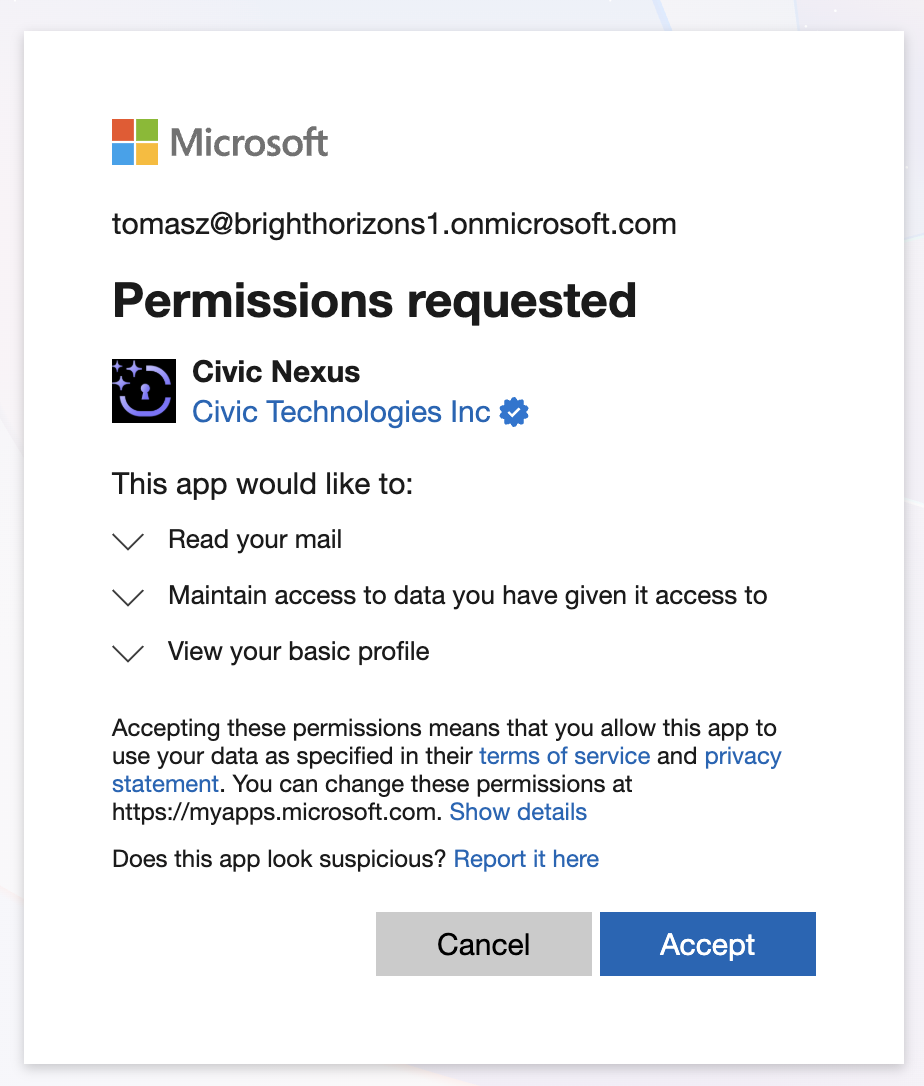
Admin approval is NOT required for Mail. Unlike other Microsoft 365 apps (SharePoint, Teams, etc.), the Mail server works with direct user consent for both personal and business accounts.Personal vs Business Accounts: Mail is the ONLY Microsoft 365 app that works with free outlook.com accounts. All other apps (SharePoint, Teams, Calendar, OneDrive, etc.) require a Microsoft 365 Business license.Office 365 Note: Office 365 is the deprecated term for Microsoft 365. They refer to the same product platform.
What You Can Do
Email Management
Read, send, and organize emails with full inbox control
Attachment Handling
Upload, download, and manage email attachments programmatically
Folder Organization
Create, browse, and manage email folders for better organization
Shared Mailboxes
Access and manage shared mailboxes for team collaboration
Available Tools
Email Operations
list_messages
list_messages
List emails with filtering by folder, read status, and date range
get_message
get_message
Retrieve full email content including body and metadata
send_message
send_message
Send emails with HTML or plain text formatting
create_draft
create_draft
Create draft emails for review before sending
delete_message
delete_message
Delete emails from inbox or specific folders
Attachment Management
list_attachments
list_attachments
List all attachments in a specific email
get_attachment
get_attachment
Download and retrieve attachment content
add_attachment
add_attachment
Attach files to emails when sending
Folder Management
list_folders
list_folders
List all mail folders in your mailbox
create_folder
create_folder
Create new folders for email organization
move_message
move_message
Move emails between folders
Shared Mailboxes
access_shared_mailbox
access_shared_mailbox
send_from_shared
send_from_shared
Use Cases
Reading Mail
“Show me my latest 5 emails” - Quickly review recent messages.Filtered Search
“List all unread emails from the last week” - Find specific messages with criteria.Attachment Management
“Show me all emails with attachments” - Locate emails with files.Sending Mail
“Send an email to john@example.com with subject ‘Meeting Follow-up’ and a brief summary of our discussion” - Compose and send emails directly.Draft Creation
“Create a draft email to sarah@example.com about the Q4 planning session” - Prepare emails for review.Folder Organization
“Move this email to my Archive folder” - Organize inbox programmatically.Shared Mailbox Access
“Show me emails in the support@company.com shared mailbox” - Access team mailboxes.Attachment Analysis
“Download the PDF from the latest email and summarize its contents” - Extract and analyze file contents.Attachment size limit: Attachments are limited by Microsoft Graph API restrictions (typically 4MB for single request).Search limitations: Cannot combine search (filter) parameters in the same query.HTML and plain text: Supports both HTML and plain text email formats.
Troubleshooting
Still seeing consent dialogs after authorization? This means permissions are missing or incomplete. For Business accounts, verify that your administrator has granted the necessary permissions in Microsoft Entra ID. For Personal accounts, try disconnecting and reconnecting the server. Authorization fails with “invalid_client” error? Ensure you’re using the correct account type. Personal outlook.com accounts cannot access other Microsoft 365 apps besides Mail.Guardrails
In addition to the 14 universal guardrails, this server has 18 server-specific guardrails across 6 operations.Unlike the Google tools, MS365 Mail has no security/blocking guardrails — all 18 tool-specific guardrails are response transforms focused on reducing token usage and improving readability.
| Guardrail | Operation | Timing | Description |
|---|---|---|---|
| HTML to Markdown Email Converter (Get) | get-mail-message | Response | Converts HTML email body to Markdown for better readability |
| Remove Unnecessary Mail Metadata (Get) | get-mail-message | Response | Removes internal tracking fields (conversationId, webLink, flags, etc.) to reduce token usage |
| Retain Only Essential Mail Fields (Get) | get-mail-message | Response | Keeps only essential fields (id, subject, from, dates, body, etc.) |
| HTML to Markdown Email Converter (Shared Mailbox Get) | get-shared-mailbox-message | Response | Converts HTML email body to Markdown for shared mailboxes |
| Remove Unnecessary Mail Metadata (Shared Mailbox Get) | get-shared-mailbox-message | Response | Removes tracking/unused fields from shared mailbox messages |
| Retain Only Essential Mail Fields (Shared Mailbox Get) | get-shared-mailbox-message | Response | Keeps only essential fields for shared mailbox messages |
| HTML to Markdown Email Converter (Folder List) | list-mail-folder-messages | Response | Converts HTML email bodies to Markdown when listing folder messages |
| Remove Unnecessary Mail Metadata (Folder List) | list-mail-folder-messages | Response | Removes tracking/unused fields from folder message lists |
| Retain Only Essential Mail Fields (Folder List) | list-mail-folder-messages | Response | Keeps only essential fields when listing folder messages |
| HTML to Markdown Email Converter (List) | list-mail-messages | Response | Converts HTML email bodies to Markdown when listing messages |
| Remove Unnecessary Mail Metadata (List) | list-mail-messages | Response | Removes tracking/unused fields from message lists |
| Retain Only Essential Mail Fields (List) | list-mail-messages | Response | Keeps only essential fields when listing messages |
| HTML to Markdown Email Converter (Shared Mailbox Folder List) | list-shared-mailbox-folder-messages | Response | Converts HTML email bodies to Markdown for shared mailbox folder lists |
| Remove Unnecessary Mail Metadata (Shared Mailbox Folder List) | list-shared-mailbox-folder-messages | Response | Removes tracking/unused fields from shared mailbox folder message lists |
| Retain Only Essential Mail Fields (Shared Mailbox Folder List) | list-shared-mailbox-folder-messages | Response | Keeps only essential fields for shared mailbox folder message lists |
| HTML to Markdown Email Converter (Shared Mailbox List) | list-shared-mailbox-messages | Response | Converts HTML email bodies to Markdown for shared mailbox message lists |
| Remove Unnecessary Mail Metadata (Shared Mailbox List) | list-shared-mailbox-messages | Response | Removes tracking/unused fields from shared mailbox message lists |
| Retain Only Essential Mail Fields (Shared Mailbox List) | list-shared-mailbox-messages | Response | Keeps only essential fields for shared mailbox message lists |