Microsoft SharePoint
Overview
The SharePoint server enables AI assistants to interact with Microsoft SharePoint, providing comprehensive site management, document handling, list creation, and content publishing capabilities through Microsoft Graph API.
How to Add SharePoint
Personal Outlook Users: SharePoint is not available for free outlook.com email addresses. You must have a Microsoft 365 Business license or Azure Cloud tenant to use this integration.
Microsoft 365 Business Users
For Microsoft 365 Business or Office 365 license holders, admin approval is required for first-time setup:
- 1Initial Authorization Attempt
Add the SharePoint server and attempt to authorize. Non-admin users will see a "Need admin approval" dialog indicating that Civic needs permission to access resources in your organization that only an admin can grant.
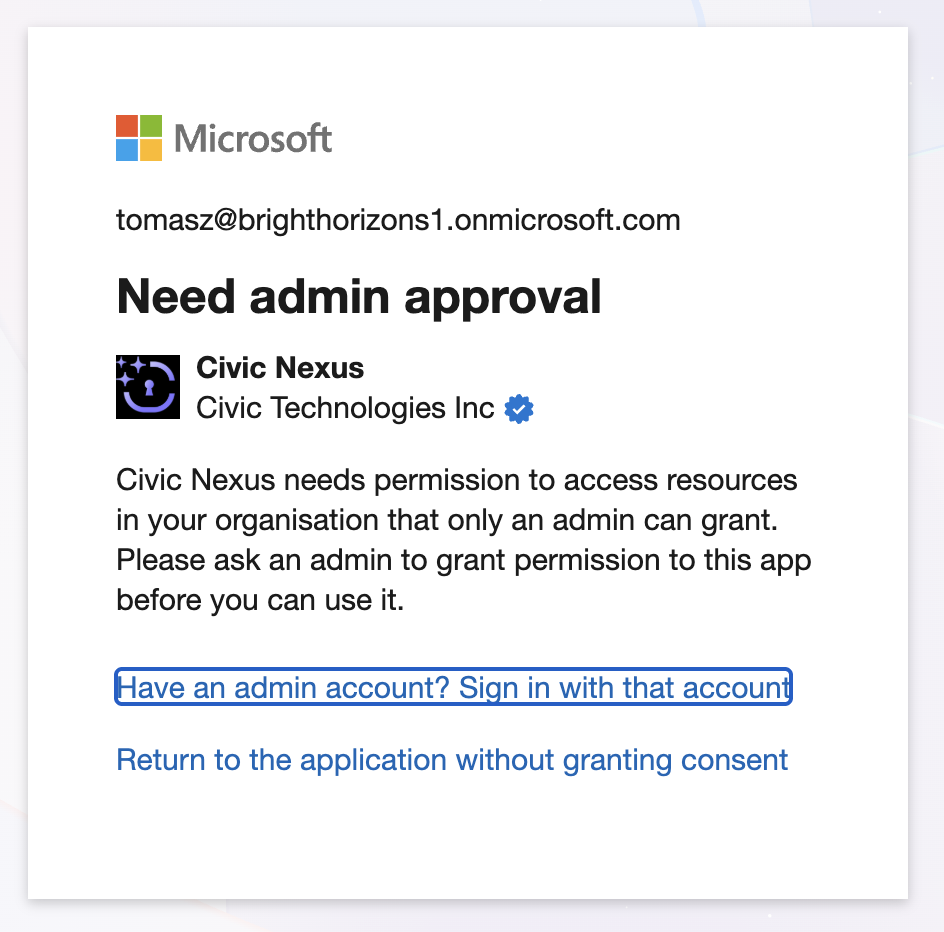
- 2Admin Grants Consent (One-Time)
Your Microsoft tenant administrator must configure consent in Microsoft Entra ID:
Access Entra ID:
-
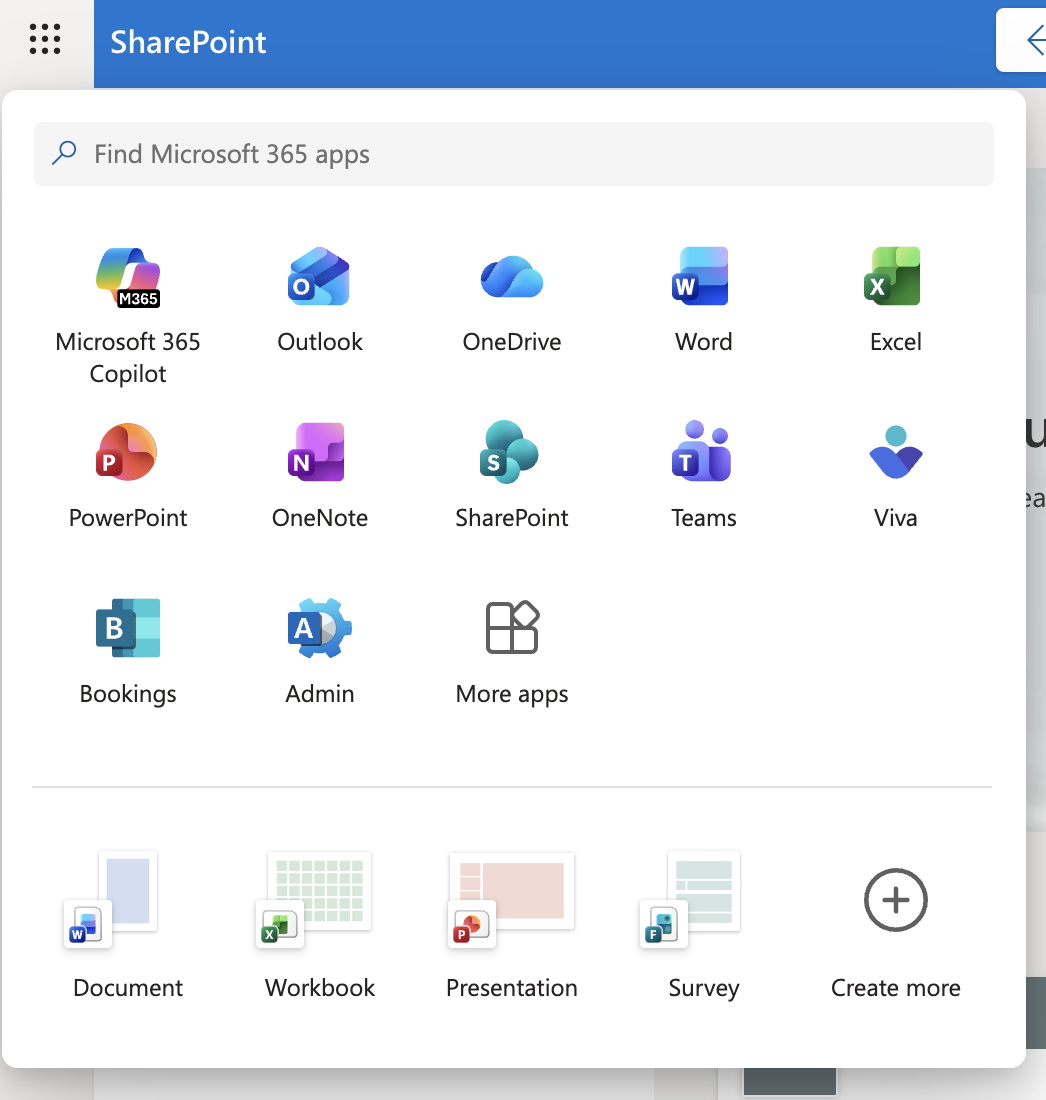
From Microsoft 365: Click the app launcher (grid icon) in the top-left corner of any Microsoft 365 app → Click Admin → From the left sidebar, click Show All → Under "Admin centers", select Identity
-
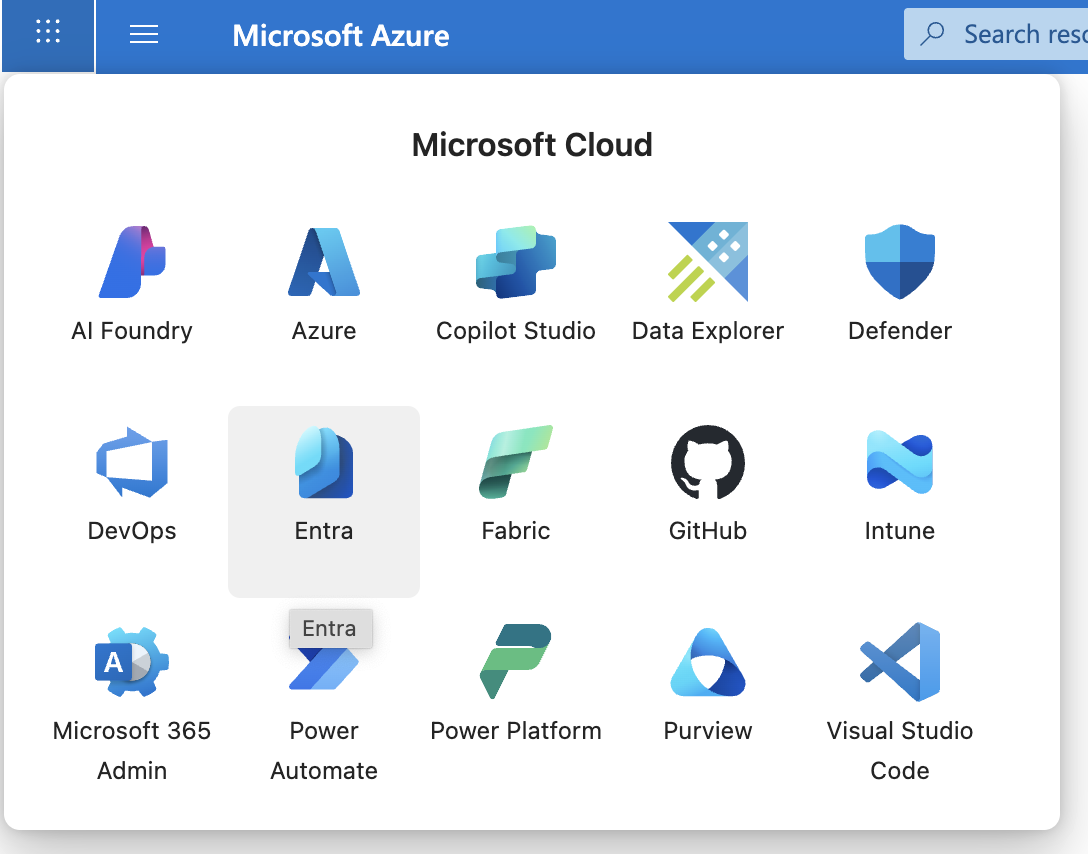
From Azure Portal: Click the app launcher (grid icon) in the top-left corner → Select Entra from the Microsoft Cloud services
Configure User Consent:
-
In Entra ID, select Enterprise apps from the left sidebar
-
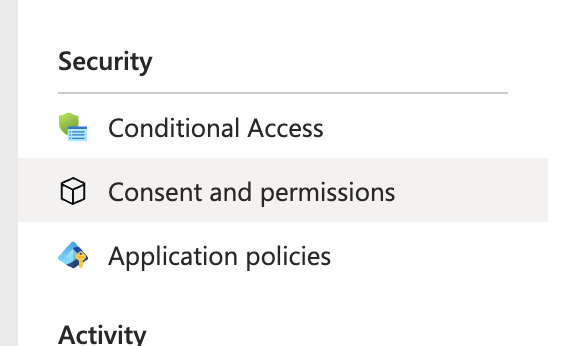
Under the "Security" section, click Consent and permissions
-
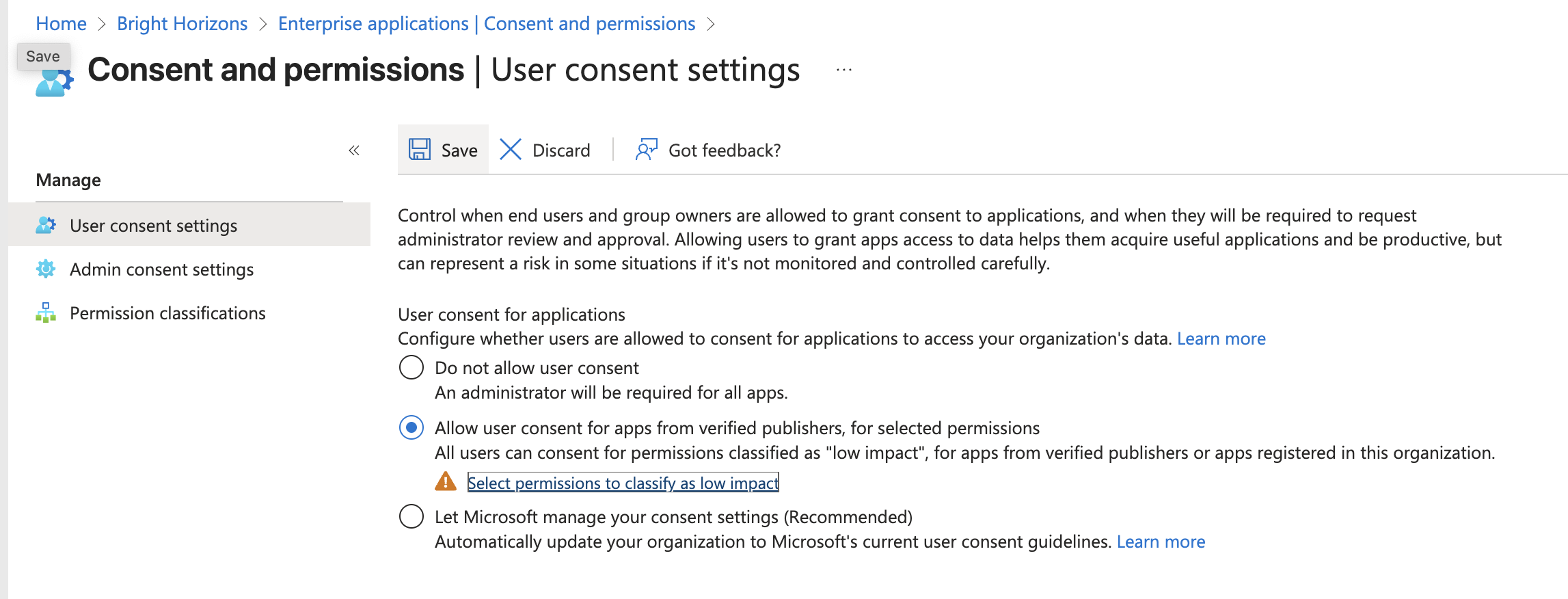
Click User consent settings
-
Select "Allow user consent for apps from verified publishers, for selected permissions" (This allows users to trigger authorization requests from Civic, since Civic is a verified publisher)
-
Click Save (Important: Save before proceeding to the next step)
-
Click "Select permissions to classify as low impact" (This whitelists the specific permissions users are allowed to consent to. If prompted to save, click Save before moving on)
-
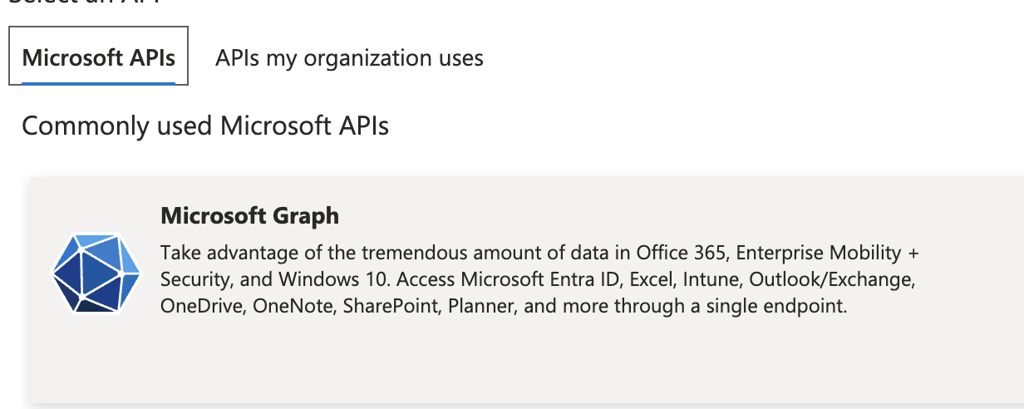
On the permissions screen, click Add permissions → Select Microsoft Graph
-
Select all OpenId permissions (required):
openid,profile,email -
Add the base permissions:
offline_access,User.Read -
Add SharePoint permissions based on your organization's needs:
- Read-only access:
Sites.Read.All,Files.Read.All,Lists.Read.All - Read/Write access:
Sites.ReadWrite.All,Files.ReadWrite.All,Lists.ReadWrite.All - Advanced management (optional):
Sites.Manage.All,Sites.FullControl.All,Group.ReadWrite.All
- Read-only access:
-
Click Add permissions then Save
-
- 3Wait and Retry
Important: Microsoft Entra ID changes can take up to 1 hour to propagate across all services. After your administrator completes the configuration, wait at least an hour before retrying authorization in Civic. Attempting too early will result in permission errors.
- 4Complete Authorization
You'll now see a standard OAuth consent screen showing "Permissions requested" by Civic. The app will request permissions such as:
- Maintain access to data you have given it access to
- Read items in all site collections
- View your basic profile
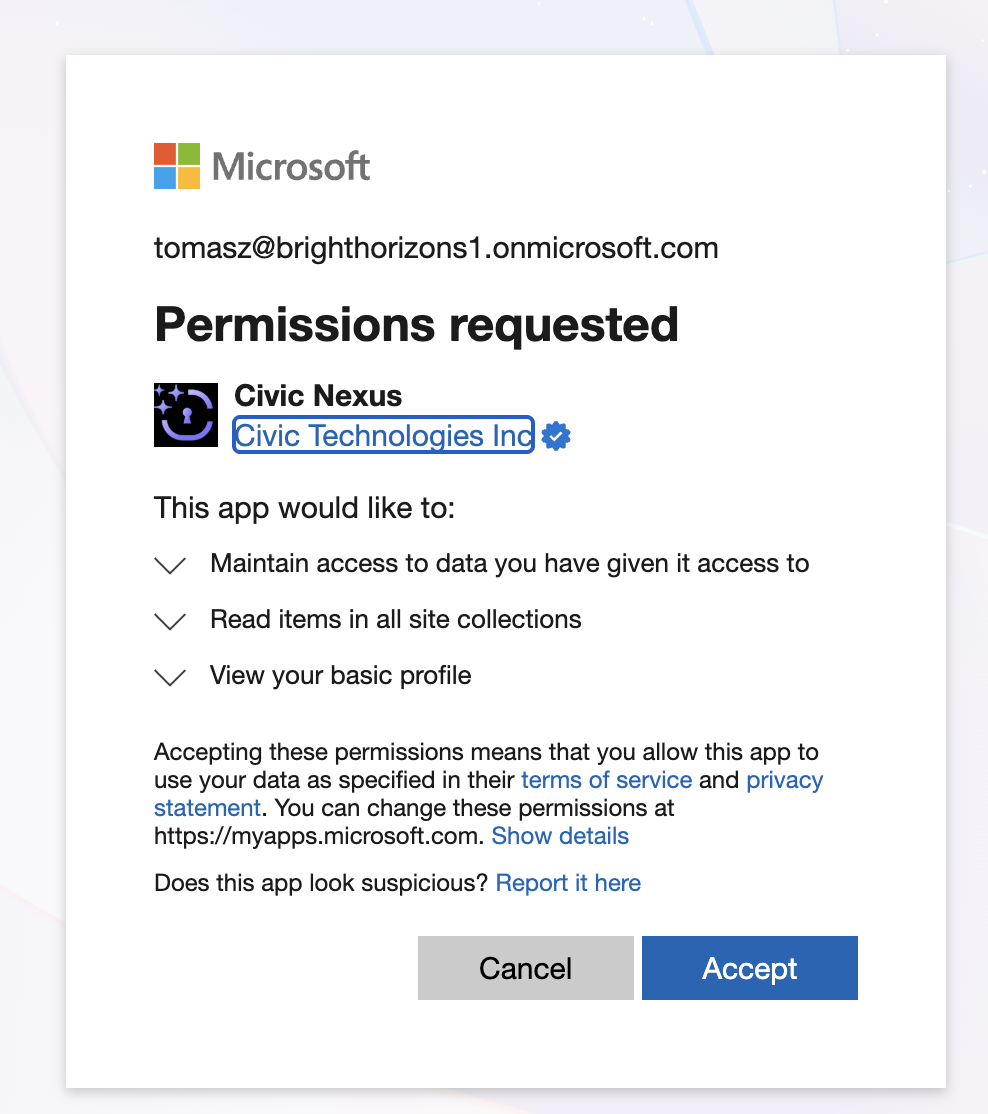
Click Accept to complete the authorization and start using the SharePoint integration.
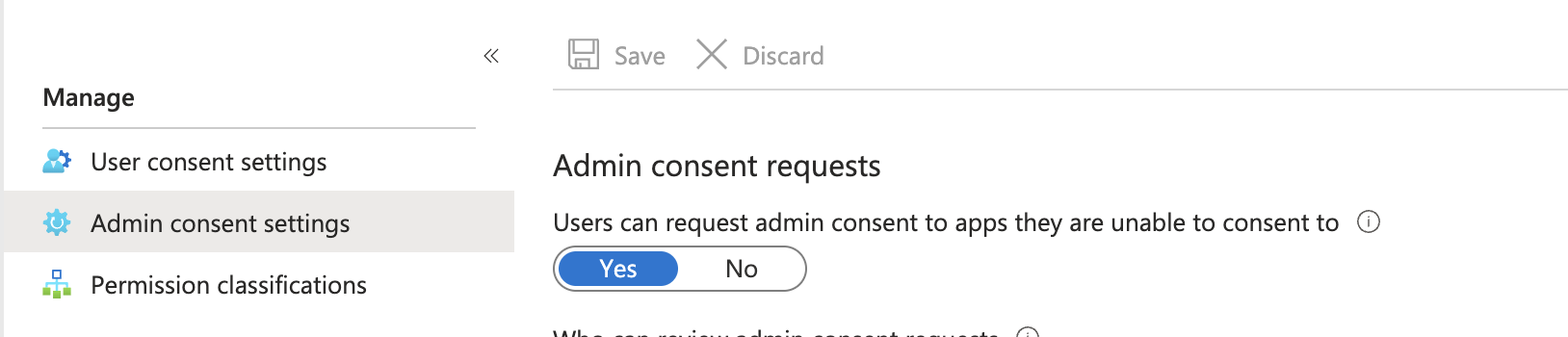
Alternative Setup Method: The steps above use a proactive approach where admins configure permissions up-front. Alternatively, administrators can enable "Admin consent requests" (found in Admin consent settings within Entra ID). This allows users to trigger approval requests directly when they attempt to authorize, and admins can approve on-demand rather than pre-configuring permissions.
What You Can Do
Create and manage SharePoint sites for team collaboration
Upload, organize, and search documents across sites and libraries
Create and manage lists for project tracking and data organization
Create modern pages and news posts for team communication
Available Tools (28)
Site Management
list_sites
List all SharePoint sites you have access to
create_site
Create new SharePoint sites for team collaboration
get_site_details
Get detailed information about a specific site
Document Management
upload_document
Upload files to SharePoint document libraries
create_folder
Create folders to organize documents
search_documents
Search for documents across sites and libraries
get_document
Download and retrieve document content
list_files
List files and folders in a library or folder
Lists & Data
create_list
Create custom lists for tracking projects, tasks, or data
add_list_item
Add items to SharePoint lists
get_list_items
Retrieve items from lists with filtering
update_list_item
Update existing list items
Content Publishing
create_page
Create modern pages for site content
create_news_post
Publish news posts for team announcements
get_pages
List all pages in a site
Use Cases
Site Creation
"Create a new SharePoint site called 'Product Launch 2026'" - Set up collaboration spaces for teams.
Document Organization
"In the Product Launch 2026 site, create folders for Marketing, Engineering, and Legal. Upload a project charter document to the Engineering folder. Then create subfolders Q1, Q2, Q3, Q4 under Marketing." - Organize project documents systematically.
Content Search
"Search the site for all documents containing 'budget'. Then retrieve the content of the financial report and summarize the key metrics." - Find and analyze documents.
Project Tracking
"Create a task tracking list with 3 sample projects including titles, budgets, managers, and due dates." - Set up project management structures.
Team Communication
"Create a modern page called 'Team Resources Hub'. Then create a news post titled 'Q4 Results Announcement' with a summary of key achievements and upcoming initiatives." - Publish content for teams.
All Microsoft 365 apps (except Mail) require initial administrator approval before users can authorize them in Civic.
Modern Pages: Pages stay in draft status and must be published manually via the web interface.
Office 365 Note: Office 365 is the deprecated term for Microsoft 365. They refer to the same product platform.
Troubleshooting
Still seeing "Need admin approval" after administrator configured permissions? Wait the full hour for Microsoft Entra ID changes to propagate. If the issue persists after one hour, verify that:
- The administrator clicked Save after each configuration step
- All required permissions were added (OpenId, base permissions, and SharePoint-specific permissions)
- The "Allow user consent for apps from verified publishers" option was enabled
Still seeing consent dialogs after successful authorization? This indicates missing permissions. Ask your administrator to review the permission list in Step 2 and ensure all required SharePoint permissions are whitelisted.
"Access denied" errors when accessing sites? Verify your account has been granted access to the SharePoint sites you're trying to interact with. The MCP server respects your existing SharePoint permissions.
Known Limitations:
- No deletion - Cannot delete sites, libraries, lists, or pages
- No permissions - Cannot manage users, groups, sharing, or access control
- No publishing - Modern pages stay in draft (must publish manually)
- No configuration - Cannot modify site settings, themes, navigation, or version control
- No comments/workflows - Cannot access comments, recycle bin, or Power Automate integration
Guardrails
This server supports all 14 universal guardrails. Server-specific guardrails are coming soon.